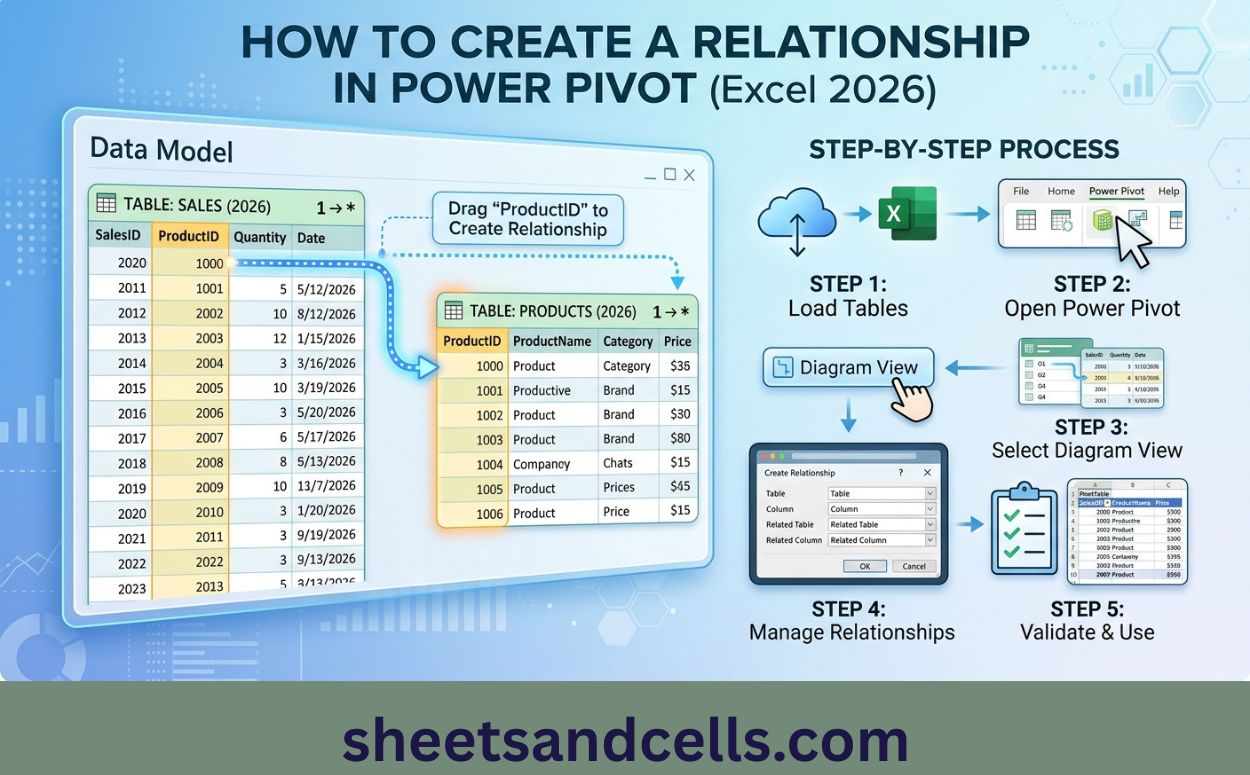
How to Create a Relationship in Power Pivot
Relationships are what let you build a single PivotTable from multiple tables. Without a relationship, DAX has no way to link a customer name to their orders, or a product name to its sales. This guide walks through creating and verifying relationships.
Before you start
Two things need to be true:
- Both tables are in the Data Model. Add them via Power Query (Load To → Data Model) or directly (Power Pivot → Add to Data Model).
- Both tables have a column that matches — same values, same type. Usually an ID column.
Step 1: Open Power Pivot
If you don't see the Power Pivot tab: File → Options → Add-ins → Manage COM Add-ins → Go → check Microsoft Power Pivot for Excel → OK.
Step 2: Switch to Diagram View
You'll see boxes for each table in the model. If they're unrelated, no lines connect them.
Step 3: Drag column to column
Drag the foreign key column from the fact table to the primary key column of the dimension table.
Example: Sales table has a ProductID column. Products table has a ProductID column. Click on Sales.ProductID and drag it onto Products.ProductID.
Drag from the "many" side to the "one" side. In our example, Sales has many rows per product; Products has one row per product. Drag Sales → Products, not Products → Sales. Power Pivot infers the correct cardinality either way, but the "many-to-one" mental model is worth building.
Step 4: Verify the relationship
A line appears connecting the two columns. Hover over it or right-click to see:
- Cardinality: Should be Many-to-One (star at Sales end, "1" at Products end)
- Filter direction: Single (arrow pointing from Products to Sales) is the safe default
- Active: Solid line = active. Dotted line = inactive relationship (used only when explicitly invoked via USERELATIONSHIP)
Step 5: Test the relationship
Close Power Pivot. Insert → PivotTable → From Data Model.
In the PivotTable field list, expand both tables. Drag "Product Name" from Products to Rows. Drag "Amount" from Sales to Values. The PivotTable should show one row per product, summing sales per product.
If instead you see the total for every row (same number repeated), the relationship isn't working — check the join columns and cardinality.
Alternative: Create via ribbon dialog
Not everyone likes dragging in Diagram View. The dialog approach:
Fill in the four dropdowns:
- Table 1: Sales
- Column: ProductID
- Table 2: Products
- Column: ProductID
Click OK. The relationship is created with default cardinality (usually Many-to-One).
Multiple relationships between the same tables
Sometimes two tables can join on multiple columns. Sales might have both OrderDate and ShipDate, and you want to link both to Calendar. Power Pivot allows multiple relationships but only one can be active.
- Create the first relationship (Sales.OrderDate → Calendar.Date). Active by default.
- Create the second (Sales.ShipDate → Calendar.Date). Auto-set to inactive (dotted line).
- Use USERELATIONSHIP in DAX to activate the inactive one when needed:
Editing an existing relationship
Right-click the relationship line in Diagram View → Edit Relationship. Or:
Change cardinality, filter direction, active state, or the joining columns.
Deleting a relationship
Right-click the line in Diagram View → Delete. Confirm.
Common issues
The dimension table's key column must be unique. If Products has two rows with the same ProductID, Power Pivot won't allow a relationship. Deduplicate the dimension (in Power Query, before loading) or use a different column.
Sales.ProductID as Whole Number and Products.ProductID as Text won't relate. Cast both to the same type. Text is safer if IDs have leading zeros; numeric is faster otherwise.
Null or blank keys in the dimension cause problems. Filter them out in Power Query or fill with a placeholder like "Unknown".
ProductID appearing twice in the field list (once per table) is confusing. Consider renaming to ProductKey or hiding one from client tools (right-click column → Hide from Client Tools).